PandoraFMS: Build and Installation Guide
· 3 min read

Index7 sections
As I conclude my senior year in college, one of the final cyber courses I’m taking began to tough upon the importance of Network Management Systems. These systems can be of importance for both Cybersecurity and Digital Forensic professionals; allowing the user to monitor a network with logs/alerts previously configured by an organization’s IT department utilizing SNMP (Simple Network Management Protocol). I was required to learn how to configure and install one of these systems within a domain environment. Below is a guide of how to do just that with the opensource monitoring software, PandoraFMS.
Overview
- Install PandoraFMS Console/Server on a CentOS system (nmon01)
- Monitor CentOS (web01), Windows Server (mgmt01), and Windows Server Core (ad01) systems utilizing PandoraFMS Client
System Networking:
Below is the networking for the systems in this guide:
- nmon01 (CentOS) – 10.0.5.11
- ad01 (Windows Server Core) – 10.0.5.5
- mgmt01 (Windows Server) – 10.0.5.10
- web01 (CentOS) – 10.0.5.200
NOTE: You will need to allow SNMP through your network firewall and configure your endpoints with an SNMP client and server. To do this, I recommend the following guides for the firewall I used, pfSense, and a CentOS based SNMP Client/Server.
Install Pandora Console
On nmon01:
yum -y install mariadb-server

systemctl start mariadb

systemctl enable mariadb

mysql_secure_installation
NOTE: SAVE THIS PASSWORD for later use
nano /etc/yum.repos.d/pandorafms.repo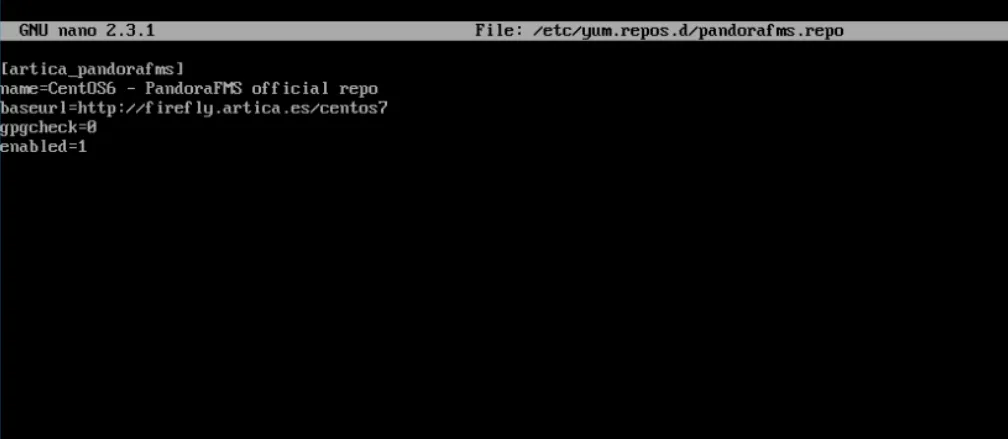
yum -y install pandorafms_console

systemctl start httpd
systemctl enable httpd

firewall-cmd --zone=public --add-port=80/tcp --permanent
firewall-cmd --reload

yum install -y policycoreutils-python

semanage fcontext -a -t httpd_sys_rw_content_t '/var/www/html/pandora_console/include'

semanage fcontext -a -t httpd_sys_rw_content_t '/var/www/html/pandora_console/attachment'

restorecon '/var/www/html/pandora_console/include'
restorecon '/var/www/html/pandora_console/attachment'
Go to http://<serverIP>/pandora_console on your web browser
Click “Next” & “Accept Agreement”
Enter the root password of MySQL (mariadb) that you set earlier
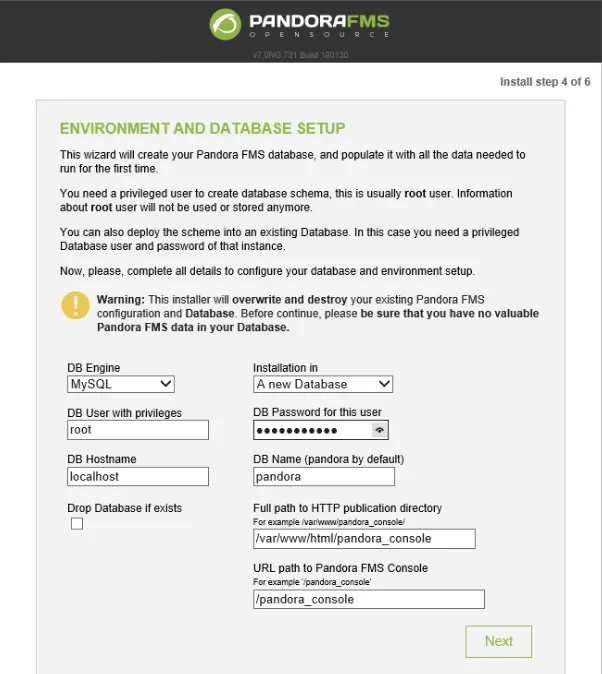
Click Next.
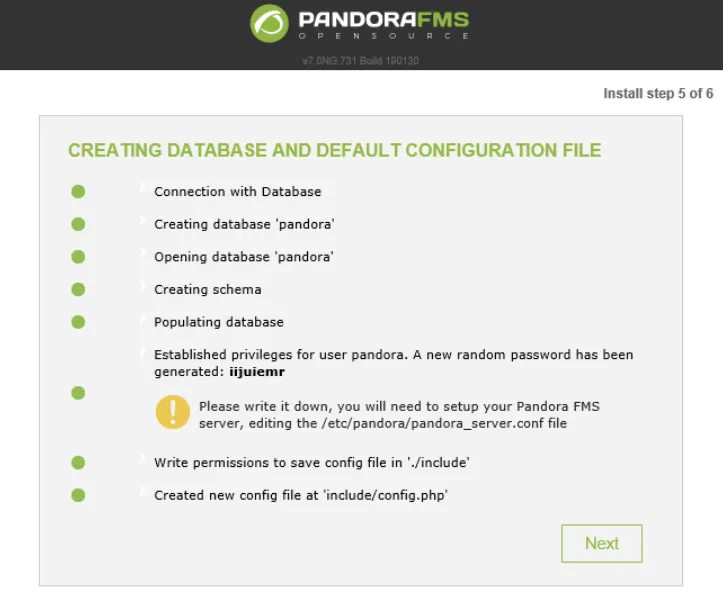
NOTE: SAVE THIS RANDOMLY GENERATED PASSWORD
rm -rf /var/www/html/pandora_console/install.phpLOGIN to Pandora Console at http://<serverIP>/pandora_console
Default User = “admin” — Password = “pandora”
Finish configuring settings in the resulting pop-up wizard.
Install Pandora Server
On nmon1:
rpm -ivh https://sourceforge.net/projects/pandora/files/Tools%20and%20dependencies%20%28All%20versions%29/RPM%20CentOS%2C%20RHEL/wmic-4.0.0tp4-0.x86_64.rpm/download
rpm -ivh https://sourceforge.net/projects/pandora/files/Tools%20and%20dependencies%20%28All%20versions%29/RPM%20CentOS%2C%20RHEL/xprobe2-0.3-12.2.x86_64.rpm/download
wget http://dl.fedoraproject.org/pub/epel/7/x86_64/Packages/p/perl-Geo-IP-1.43-3.el7.x86_64.rpm
rpm -Uvh perl*
yum -y install pandorafms_server
nano /etc/pandora/pandora_server.conf
Change “dbpass pandora” to “dbpass <pandoraRandomGenPassword>”
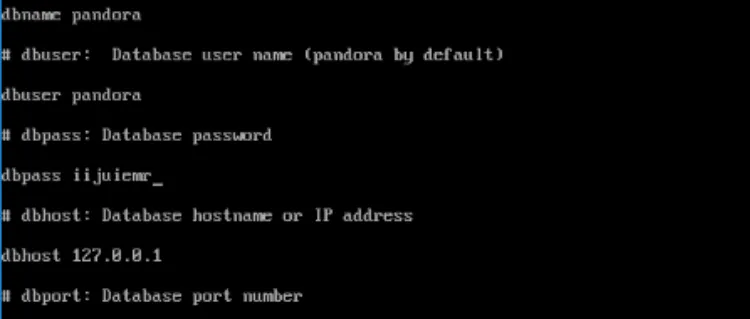
NOTE: Make sure this field above is correct and matches the randomly generated password Pandora assigned your instance.
systemctl start pandora_server
systemctl enable pandora_server

systemctl start tentacle_serverd
systemctl enable tentacle_serverd

firewall-cmd --zone=public --add-port=41121/tcp --permanent
firewall-cmd --reload
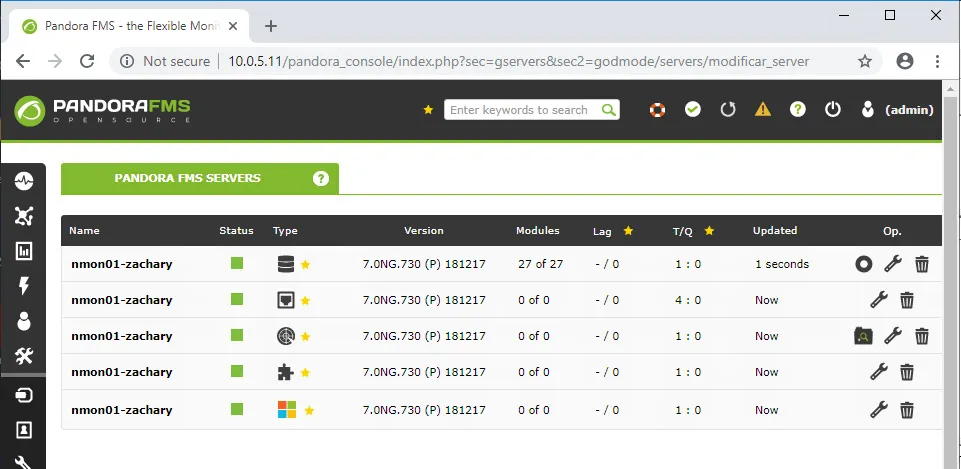
Go to Server → Manage Servers on Pandora Console Web GUI
Install Pandora Agent (CentOS)
On web01:
wget https://sourceforge.net/projects/pandora/files/Pandora%20FMS%207.0NG/730/RHEL_CentOS/pandorafms_agent_unix-7.0NG.730-1.noarch.rpm
yum localinstall pandorafms_agent_unix-7.0NG.730-1.noarch.rpm
nano /etc/pandora/pandora_agent.conf
Change “server_ip” to the IP Address of your Pandora Server
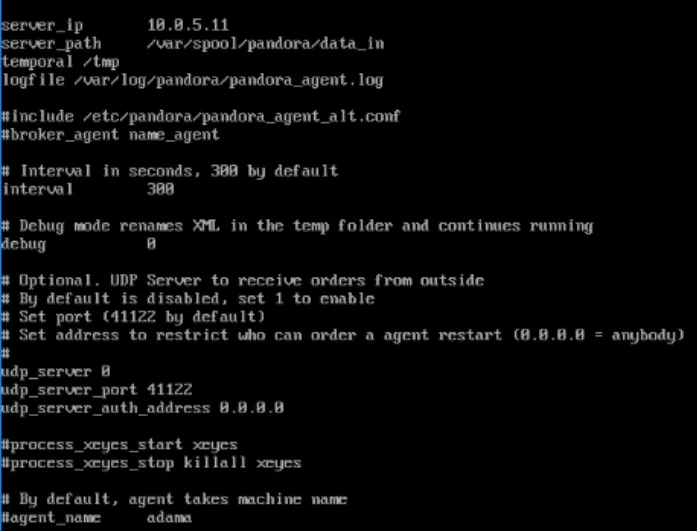
service pandora_agent_daemon startGo to Views → Agent Detail in Pandora Console to verify successful Install.
Install Pandora Agent (Windows Server)
On mgmt01:
GO TO Windows Server Web Browser and download Pandora Agent, not Server
Follow the on-screen prompts to install PandoraFMS Agent
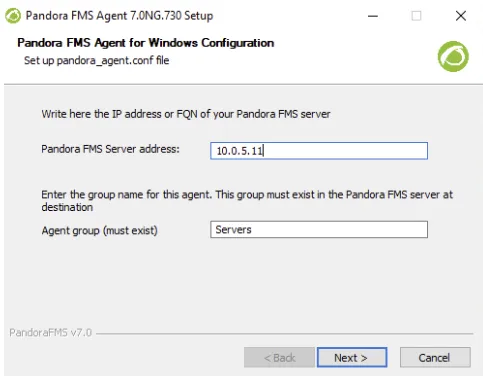
Verify successful install on Pandora Console.
Install Pandora Agent (Windows Server Core)
On ad01:
Navigate to Command Line (Option 15)
Enter Powershell (“powershell” + ENTER)
NOTE: There are other ways to do the following, however I decided to install Google Chrome (yes) to Windows Server Core to utilize Chrome’s Downloads section to install this agent. You can utilize Powershell’s Invoke-WebRequest option as well, but where is the fun in that? 🙂
cd /
mkdir Chrome

Invoke-WebRequest "http://dl.google.com/chrome/install/375.126/chrome_installer.exe" -UseBasicParsing -OutFile C:\Chrome\Chromesetup.exe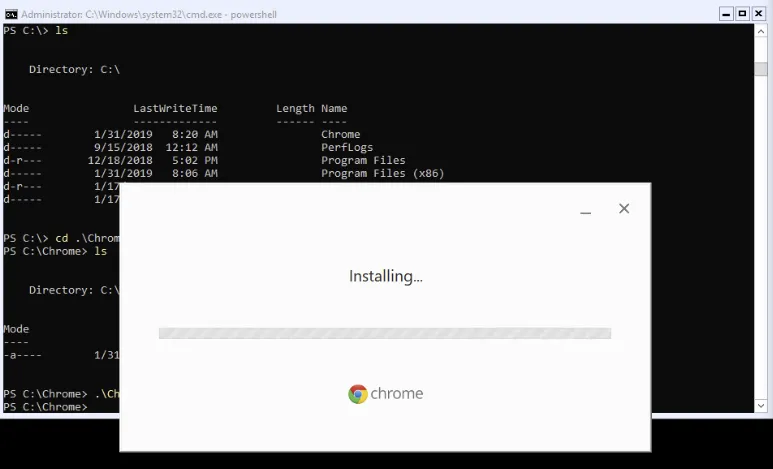
cd <installDir>
Start-Process .\chrome.exe
Download Pandora Agent, not Server
Install Agent and verify Install on Pandora Console.
Verify Agent to Server Connections
Open PandoraFMS Console on your web browser and look under Agent Detail. If you see all of your servers, then all Agent installations were successful:
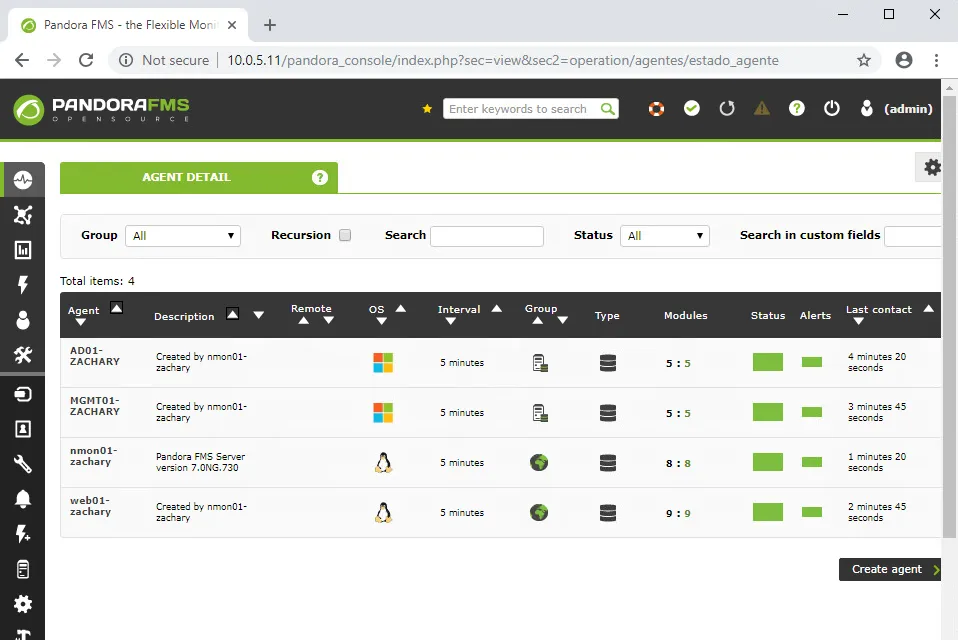
You should see an entry for every endpoint with an Agent
Congrats! PandoraFMS is successfully implemented on your network. Enjoy the world of SNMP.