ELK + Beats: Securing Communication with Logstash by using SSL
· 5 min read
Index7 sections
The Elastic Stack (ELK) is an amazing index-searching tool, utilizing services such as Elasticsearch, Logstash, and Kibana to index and store logs and Beats Data Shippers such as Winlogbeat to ship them there. However, ELK can be just as scary, storing data from a plethora of different machines across one or more networks ripe for a potential attacker to obtain. A malicious actor could use techniques such as a Man-In-The-Middle attack to intercept traffic between an endpoint and Logstash, thus obtaining data that only those with credentials to that specific endpoint would have had access to.
A possible solution could be to fortify your firewall – establishing rules to only allow each service to communicate between essential nodes (i.e. Elasticsearch nodes free to talk to each other while only allowing outside queries from Kibana and the filtered data from Logstash). This could work to increase security, but if an attacker intercepts this traffic by IP Spoofing, you’re toast. Luckily, Logstash and Beats both support SSL encryption, and the guide below will walk you through the setup.

What you need
- A working Single or Multi-Node ELK Cluster
- Ubuntu or CentOS based (Ubuntu 18.04.1 used for this guide)
- CA Server (OPTIONAL – recommended for Enterprise environments, however not used in this guide)
- OpenSSL (v1.1.0g used in this guide)
Install OpenSSL on Logstash Node
Run the following command to see if OpenSSL is currently installed on your Logstash Node. If present, your output should look similar to the following:

If so, congrats. If not, yikes. Use apt-get install or yum install to grab OpenSSL. If installed and the version is OLDER than the one I am using above, update to my version to ensure compatibility.
Generate SSL Certificates
Stop the Logstash service on your node:
systemctl stop logstashNow we need to generate an SSL certificate and key pair for communication. This certificate is used by Beats to verify the identity of your Logstash server.
There are two methods to pull this off; utilizing DNS to resolve your Logstash node’s IP address, or manually pre-configuring it. To make things simple, we are going to manually add Logstash’s IP address to the certificate we generate.
Elevate to root privileges and open the OpenSSL configuration file:
sudo su
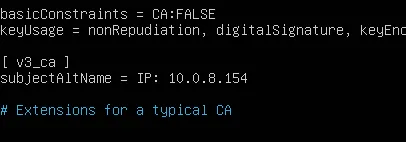
nano /etc/ssl/openssl.cnfFind the section labeled [ v3_ca ] within the configuration file and add the following line, changing out my IP for the IP of your Logstash node:
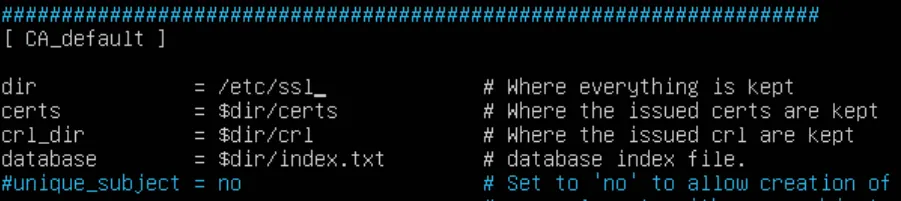
Also find the [CA_default] section and change the “dir” variable to the directory you are working from (i.e. /etc/ssl), just to avoid any possible conflicts down the road:
Save the configuration file and exit.
Use the following command to generate the SSL certificate and private key and place them in the appropriate directories (make the /private directory if not present in your working directory):
cd /etc/ssl
mkdir private

sudo openssl req -config /etc/ssl/openssl.cnf -x509 -days 3650 -batch -nodes -newkey rsa:2048 -keyout private/logstash-forwarder.key -out certs/logstash-forwarder.crtThe certificate you just created, logstash-forwarder.crt, is what will be deployed to all endpoints you wish to have communication with Logstash to send logs.
OPTIONAL: To ensure Logstash can always contact your private key, you may want to modify the permissions on the /private directory and its contents so Logstash is the owner:
chown -R logstash:logstash private
chmod 700 -R private
Configure Logstash for SSL
Now that you have your private key and self-signed certificate, you need to configure Logstash to take and use these for all communications, which for this service is, by default, port 5044.
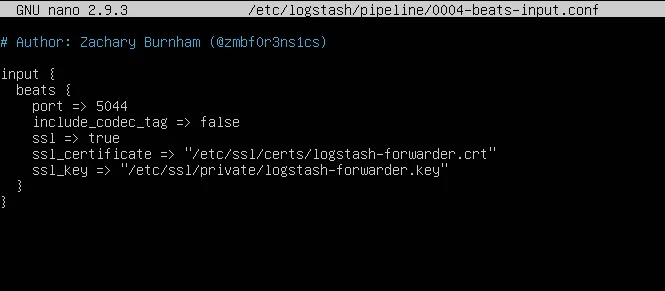
Edit the configuration file that you use in your pipeline to listen and ingest logs to Logstash. This is commonly referred to as the beats input configuration. The default location for these files is /etc/logstash/conf.d, but I got fancy and made mine /etc/logstash/pipeline to more closely resemble the purpose of the directory. I also use modified versions of the configuration files found on @Cyb3rWard0g’s GitHub page for HELK (Hunting ELK), which I highly recommend you check out. For myself, this file is named 0004-beats-input.conf.
Your beats input file’s SSL fields should match mine below:
All other Logstash configuration files should be fine.
Configure Winlogbeat for SSL
Use whatever means at your disposal to copy logstash-forwarder.crt to your endpoints. Once copied, move it to a newly created folder (/ssl) in the directory where you keep winlogbeat:
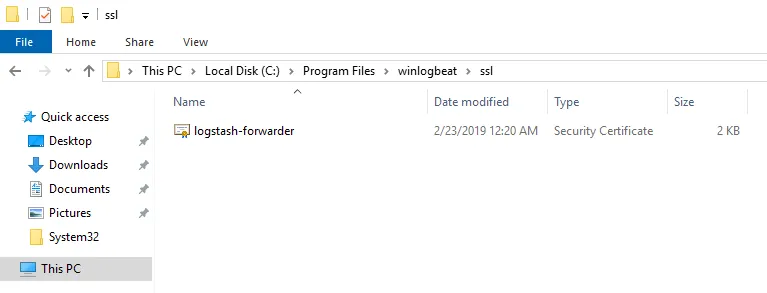
Modify the winlogbeat.yml within your winlogbeat directory and add the following lines to your Logstash configuration section:
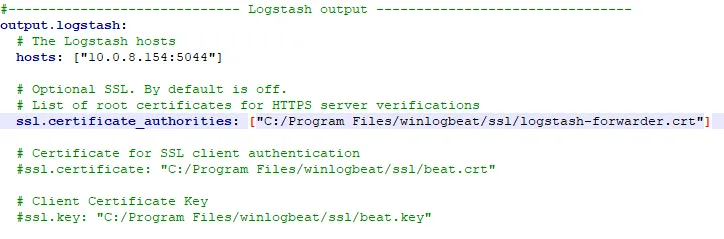
Save and exit the configuration file and restart Winlogbeat as a service. On a Windows system, this can be done by going into the Services application and restarting it from there.
Test SSL Installation
Go back to your Logstash node and start up the service again. It may take 2-3 minutes for Logstash to come back up, but you can monitor it’s progress by looking at its logs with the following command:
tail -f /var/log/logstash/logstash-plain.logNavigate to Kibana and look for logs. If you see entries in the last 15 minutes, then you know you did something right:
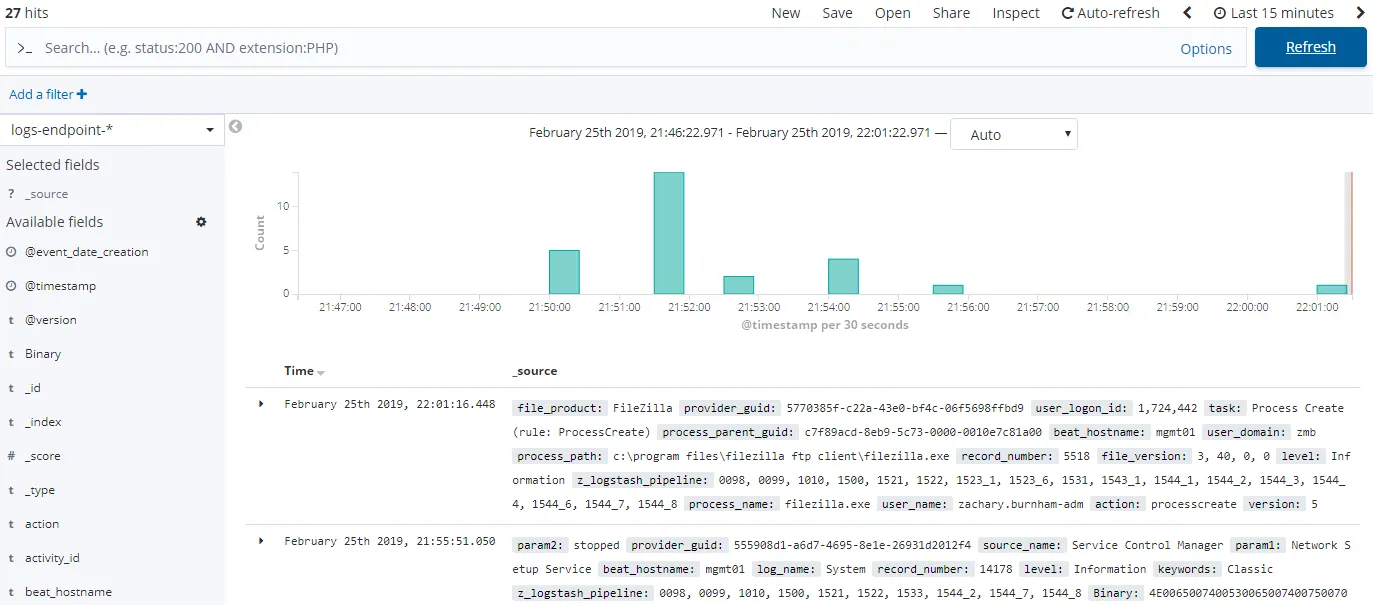
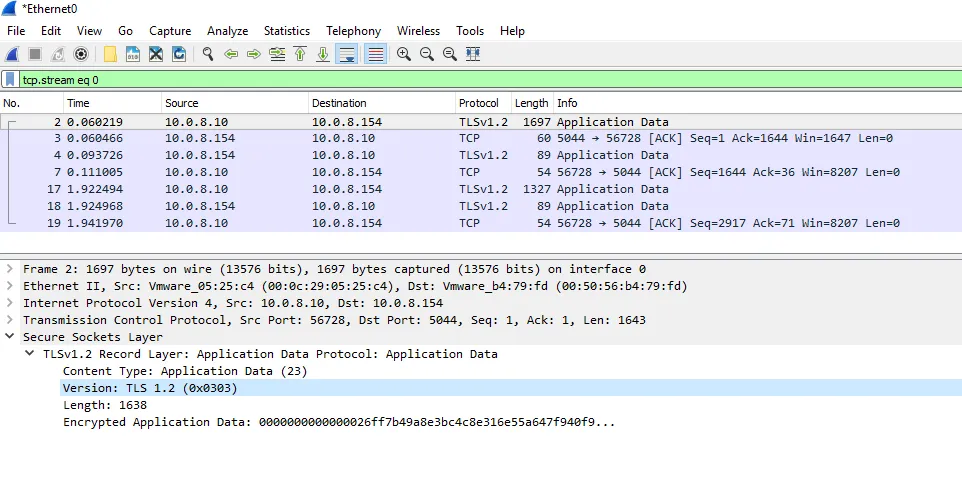
To triple verify, run Wireshark on your SSL-configured endpoint for about 5-10 seconds and filter for traffic to your Logstash node’s IP address. If you see TLS traffic, you’re all set.
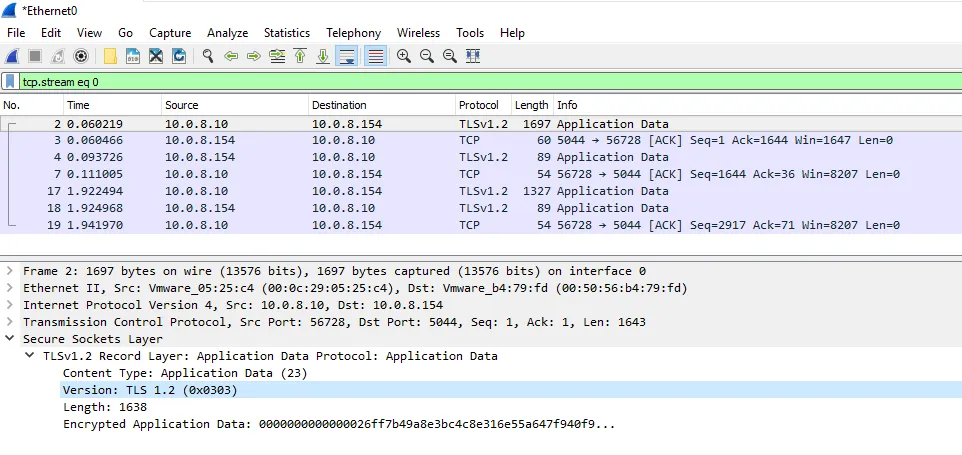
All Set!
You have successfully configured Logstash for SSL encrypted traffic between your endpoints.