Manually Attach USB Device as a VMFS Datastore in ESXi
I recently attempted to upgrade the storage on my home server while looking for the means to preserve the data on my soon-to-be old drive. One solution I attempted was to attach an external USB drive and to temporarily migrate files and VMs over until I could replace the it. Upon trying this, however, I soon realized ESXI was unable to recognize my Western Digital 1TB External Drive.
Below are some steps on how to manually add and format a USB device as a VMFS Datastore to ESXI utilizing ESXI’s shell.
Important Information
- This was tested on ESXI 6.7.0
- As of now, ESXI does NOT support USB devices over 2TB
Steps
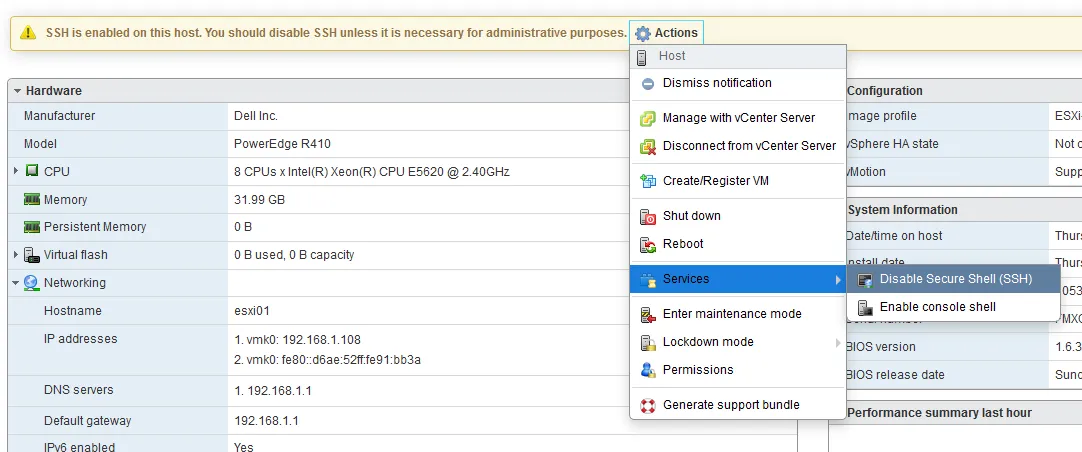
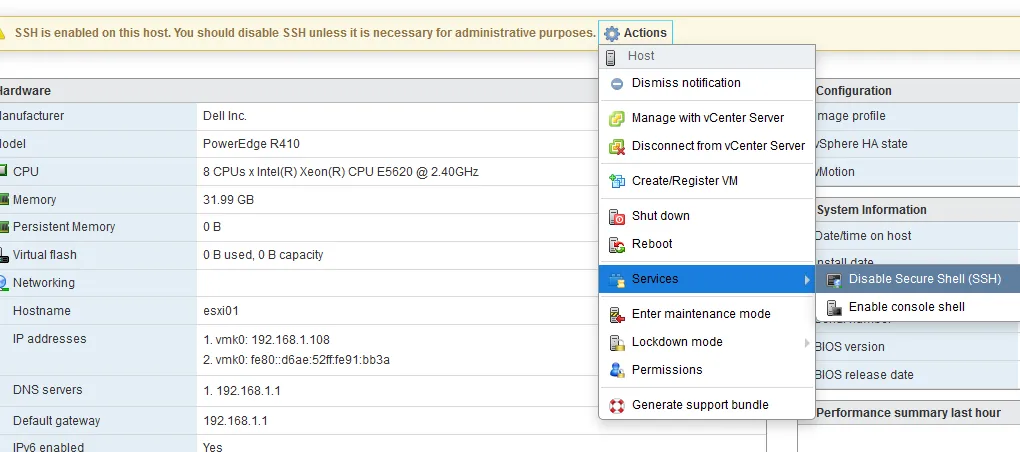
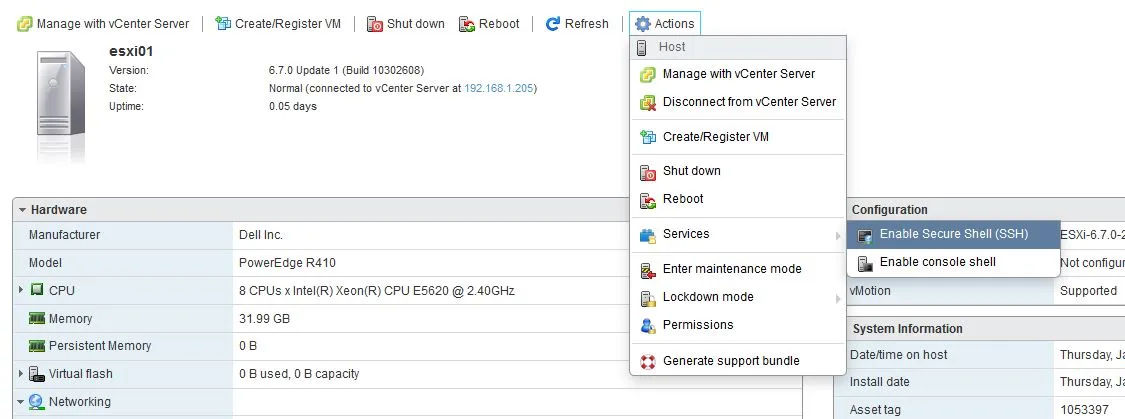
Temporarily enable SSH access to your ESXI host
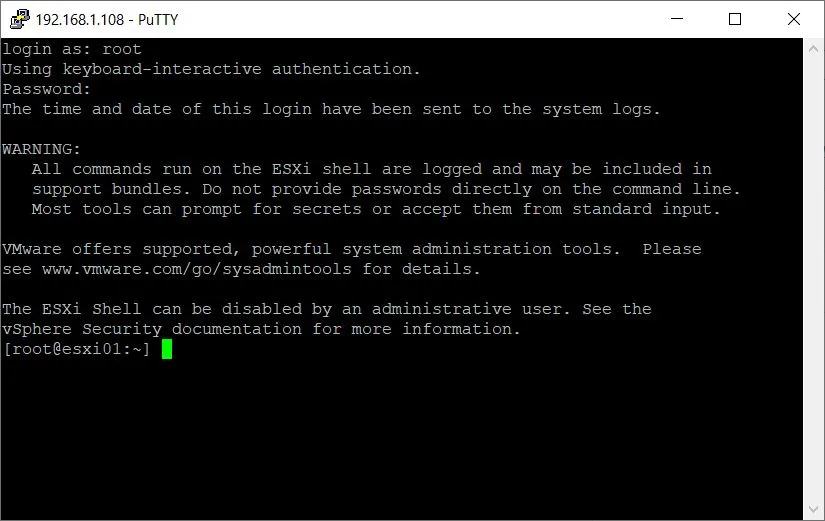
Remotely access ESXI using SSH to access ESXI’s shell
Stop the USB arbitrator service
/etc/init.d/usbarbitrator stopPlug in and look for your desired USB device
ls /dev/disks/
Write a GPT label to your USB device using it’s ID:
Ex: t10.WD______MyPassport_0740wx51A1309457____
partedUtil mklabel /dev/disks/<deviceID> gptTo manually create a new partition of anything, you need to know the start and end sector as well as the GUID of the desired file system.
Calculate (yes, math) the end sector for your new partition from the resulting numbers from the following command:
partedUtil getptbl /dev/disks/<deviceID>
Example Calculation: 121597 \* 255 \* 63 -1 = 1953455804
Create VMFS partition using the number you calculated (end sector), the start sector (2048) and the VMFS GUID
partedUtil setptbl /dev/disks/<deviceID> gpt "1 2048 <endSector> AA31E02A400F11DB9590000C2911D1B8 0"Format your new partition with VMFS6
vmkfstools -C vmfs6 -S External-Storage /dev/disks/<deviceID>:1
NOTE: Replace External-Storage in the above command with whatever you wish your Datastore name to be.
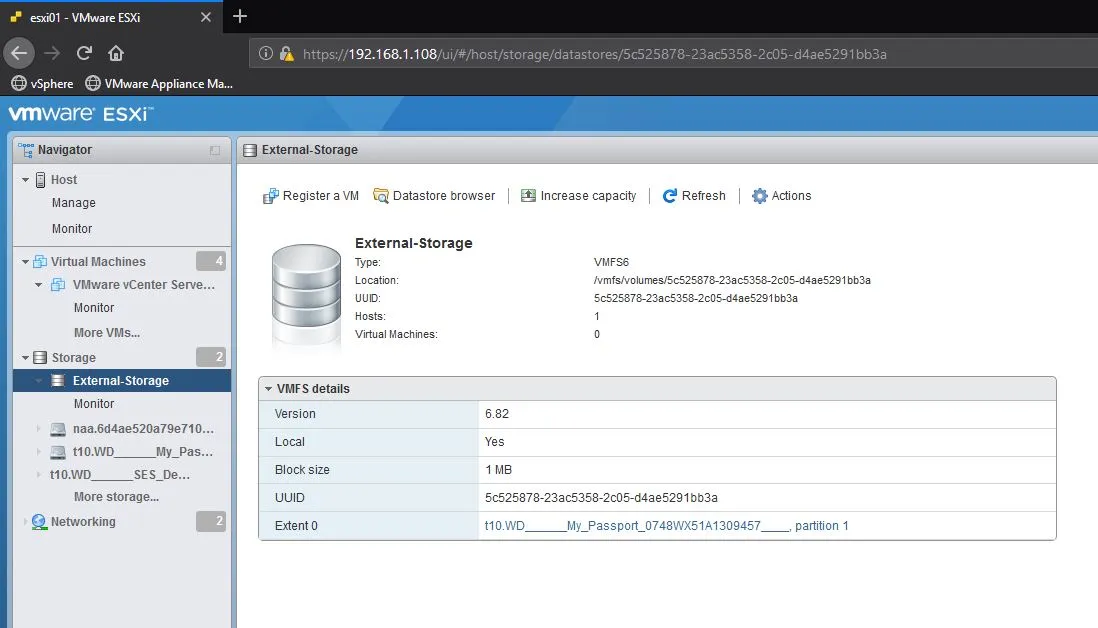
Go back to ESXI and navigate to the Storage tab. You should see your new Datastore enjoying its new home.
Re-disable SSH access to your ESXI host