Home Lab
Home Lab Snapshot: May 2026
· 7 min read
Index9 sections
I’m planning this post as the beginning of a series - whenever I make consequential changes to my home lab, I’ll make a cooresonding post like this. But this acts as half notes-to-self, half baseline reference to be used for future posts that may need context around the specs I’m currently working within. The shape of the lab will drift over time (hence the blog post name) so consider this a snapshot, not a permanent answer.
Why have a home lab
Two reasons, both opportunistic:
- Apple Silicon is genuinely good for local LLMs now. Not to be an Apple fanboy, but M5 Pro’s unified memory allows a 35B-parameter abliterated model to load on the same laptop I use day-to-day without a massive rig. For malware-adjacent work where I don’t want samples or decoded artifacts being sent to a hosted API, this is perfect.
- VMware Fusion is free (for personal use). Broadcom released Fusion for personal use in 2024, which removes the last meaningful cost barrier to running a couple of Windows/Linux VMs on a Mac.
The stack
Three layers, each doing a specific job. The diagram below is interactive - click any layer to see what runs there and current specs I am using.
M5 Pro MacBook Pro
The whole lab runs on my MacBook. Apple Silicon's unified memory is what makes the rest of the stack viable on one machine - the GPU and Neural Engine share the same 64GB pool the OS and VMs draw from, allowing the usage of sizeable local models + VMs without a massive rig.
- ChipM5 Pro
- CPU18-core
- GPU20-core
- Neural Engine16-core
- Memory64 GB unified
- Storage2 TB SSD
Local LLMs: LM Studio + Ollama
Two LLM apps, two different roles. Each have their own advantages, so I decided to just leverage both. I’m calling this out specifically, including the specific model each is running, so future posts can link back here for the model context without re-explaining each time.
LM Studio (abliterated models)
LM Studio gets the abliterated models, which are variants where the refusal vector has been ablated out of the weights. This allows the model to answer questions about obfuscated payloads, reverse-engineering, and exploit code without dragging in the safety jargon that (although needed for day-to-day models) derails a deobfuscation session. I’m currently running huihui-qwen3.6-35b-a3b-abliterated, which is the same base Qwen 3.6 35B with the refusal behavior removed.
The use case is narrow: code deobfuscation, walking through what a malware sample is doing, and asking questions such as “what does this PowerShell loader look like decoded.” A safety-aligned model buries the answer under disclaimers, which isn’t helpful.
Ollama (regular models)
Ollama runs the regular, safety-aligned models, and I’m currently using qwen3-coder:30b. This is the model that powers SousChef and anything else where I’m not asking for content the alignment guardrails would block anyway. This includes code generation, CyberChef recipe creation, and structured-output tasks.
Keeping these two apps separate (rather than running everything through one) is partly historical, partly practical: LM Studio’s UI is built around model browsing and chat, which is what I want for the analysis side. Ollama’s HTTP API and CLI are what I want for the tooling side. They share the host’s RAM pool, but I rarely have both pulling on a model at the same time.
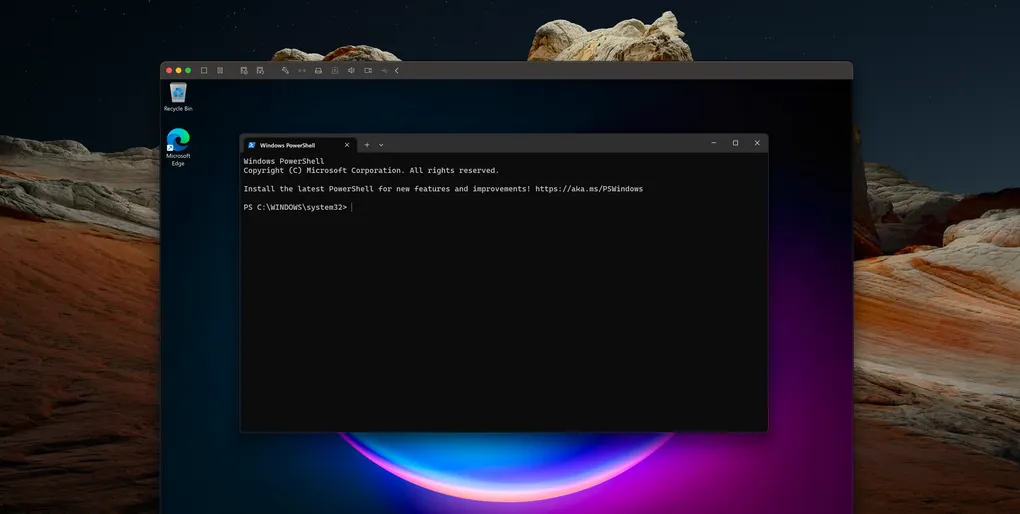
Windows 11 detonation VM
My VM is named “Windows 11 Detonation.” It’s the host for any “let’s see what this PowerShell loader actually does” session, used for static analysis only - no execution of live samples (yet).
| Setting | Value |
|---|---|
| Guest OS | Windows 11 (ARM64 ISO from Microsoft) |
| vCPUs | 2 |
| RAM | 4 GB |
| Disk | 60 GB thin-provisioned, single file |
| Virtual TPM | Enabled (required by the Win11 installer) |
| Network | Host-Only (“Private to my Mac”) |
| VMware Tools | Installed (copy/paste + drag/drop) |
The vTPM toggle is in Fusion’s VM settings and is non-negotiable for Win11 here. Without it, the installer refuses to proceed past the system-requirements check. Thin-provisioned single-file disk keeps the VM portable for backup; I’d rather one large file than 60 GB worth of sparse extents.
OOBE bypass for a no-account install
Out-of-Box Experience is the first-boot setup wizard on a fresh Windows 11 install (and for DFIR labs, very annoying). By default, OOBE forces a Microsoft account sign-in and an active internet connection before letting you reach the desktop, both of which are undesirable for an analysis VM.
Luckily, there is a way around it. At the “Let’s connect you to a network” screen, hit Shift + F10 to open a command prompt and run:
oobe\bypassnroThe VM reboots OOBE in a mode where an “I don’t have internet” option becomes available, and you can finish setup with a local account.
Networking (Host-Only)
Fusion’s network adapter is set to “Private to my Mac” — “Host-Only” in standard hypervisor terminology. The VM can reach the macOS host (and the host can reach the VM), but the VM has no path to the LAN and no path to the internet.
For static analysis and decoding, this is exactly what you want. If I’m pasting in an obfuscated PowerShell blob and asking the VM to walk it through IO.Compression decompression, there is no scenario where it benefits from talking to a C2. NAT and Bridged both leave a path open and Host-Only closes it.
Snapshots
Fusion’s snapshot model is generous enough that I can keep two named baselines and just roll back between sessions instead of rebuilding the VM each time. I chose to keep two for this detonation VM:
- Snapshot 1: Clean post-OOBE. Nothing installed. This is the “I need to test something against an out-of-box Windows” snapshot — useful for verifying that a behavior isn’t an artifact of the modifications below.
- Snapshot 2: Tools + Defender off. VMware Tools installed, Defender fully disabled (see the next section) and no other software. This is the working baseline I usually roll back to between sessions.
Disabling Defender
For pure decoding work, such as feeding the VM an obfuscated PowerShell command and asking it to walk through the deobfuscation, Defender’s real-time scanning and behavior monitoring will block or quarantine the artifact mid-session (booooo). You need to disable Windows Defender to get to the goodies. But only doing one or two of the steps outlined below leaves Defender in a state where some engines re-enable themselves on reboot or the next policy refresh. So you gotta do them all.
Tamper Protection is a guardrail that blocks every other Defender setting from being changed via PowerShell, registry, or Group Policy. It can only be disabled through the Settings UI, so this step has to happen before Steps 2 and 3 will actually stick.
- Open Settings → Privacy & security → Windows Security.
- Open Virus & threat protection, then Manage settings.
- Toggle Tamper Protection to
Off. Accept the UAC prompt.
Without this, Set-MpPreference calls in the next step will silently fail or revert on reboot.
Once all three steps land and the VM has rebooted clean, this is the moment to take Snapshot 2 (Tools + Defender off).
So - how am I using this Detonation VM?
PoC #1: Simple obfuscated PowerShell (IO.Compression)
First real test of the VM was a small obfuscated PowerShell command that used System.IO.Compression to inflate a base64 payload at runtime. The interesting bits that came out of the session:
- Pasting and inspecting. First instinct was to wrap the decompressed payload in
Write-Hostso the CLI would print the inflated script content. It works, but I quickly learned reading bytes throughWrite-Hostis fragile for anything with embedded quoting. Invoke-Expressioncapture trap. Leaving the originalIEX (...)wrapper in place meant$resultwas capturing the return value of whatever the payload executed, not the payload itself. The right move was to strip theIEXand read the inflated stream directly viaStreamReaderover aDeflateStream.- Leftover
);parse error. After stripping theIEXwrapper, the dangling);from the original tail caused PowerShell to bail with an unexpected-token parse error. Had to remember to clear that, then the command printed the goodies.
PoC #2: Complex insert/remove/replace obfuscation
Second test was a different animal: a PowerShell loader reconstructed from 17 separate scriptblock-logging entries in a PowerShell EVTX. Insert/remove/replace obfuscation across the chain made manual reassembly painful.
- Reassembly ordering. Scriptblock logs need to be sorted by
MessageNumberwithin a matchingScriptBlockIdGUID, not by timestamp. When pulled from EVTX logs, often times this requires manual sorting by the analyst. - Null expression error. First try, the reassembled chain threw a null-expression error on execution, which I traced to a likely missing or out-of-order scriptblock somewhere in the middle of the chain (pain). Essentially I had to iterate from here to figure out where I was dumb.
More to come
This is just the baseline of a lab setup as I currently get more into it - posts that lean on the detonation VM or the snapshot/rollback workflow may link back here instead of re-explaining the setup each time. When the shape of my home lab changes meaningfully, such as whenever I get off my couch and seriously play around with a Kali Linux VM, I’ll add a new dated snapshot post to this series.
ZB